























FAQ How to Ping a Windows Computer from Recorder Serial Console
1. Introduction
- This procedure describes how to check reachability of a Windows computer in the network using the ping from a GeoSIG recorder's serial console.
2. Required Tools
- Serial console of your GeoSIG instrument connected to a computer
- GeoSIG instrument connected to same network as the Windows computer you want to check
- IP address of the computer to check
3. Find out the IP address of your Computer
- Open the Windows Search Menu for Programs
- Search for cmd
- Open the Command Prompt App
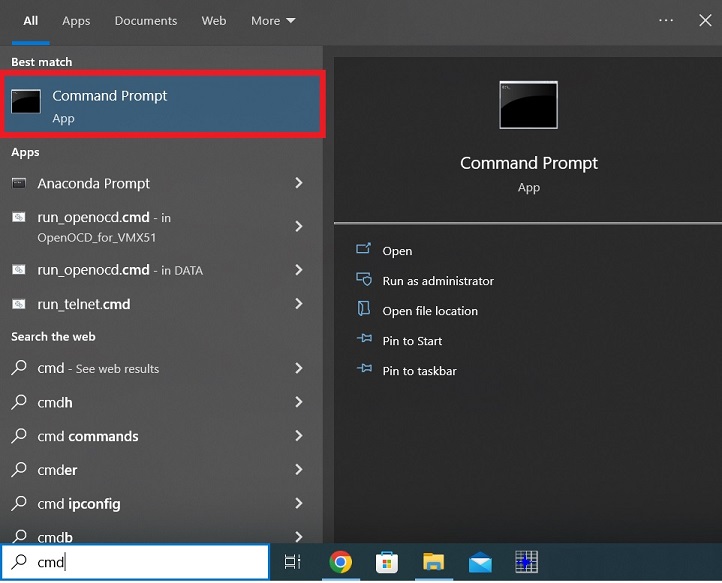
- A new window will appear
- Type ipconfig and confirm pressing [Enter] key on your keyboard
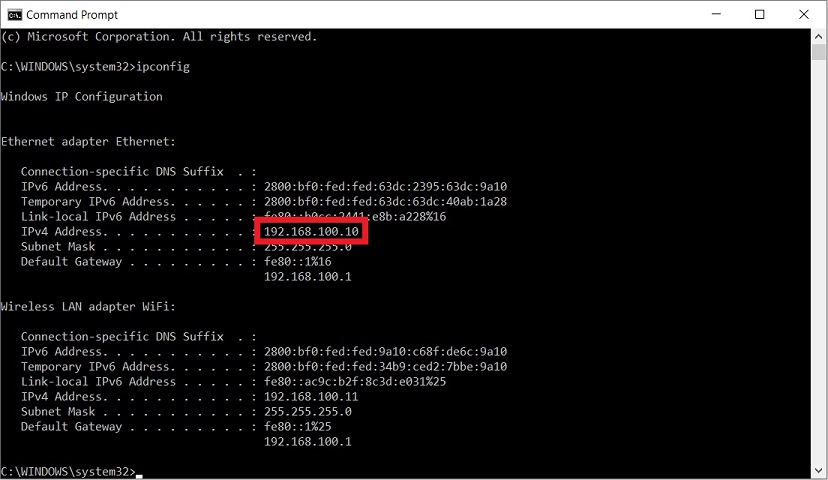
- The IP address of your computer's Ethernet adaptor will be shown under Ethernet adapter, the IP listed as IPv4 Address....: xxx.xxx.xxx.xxx
- If your computer is connected through Wifi, the IP can be found under Wireless LAN adapter and will be shown as IPv4 Address....: xxx.xxx.xxx.xxx
- If the IP starts with 169.254.xxx.xxx, your computer is most likely not connected to a network
4. Make sure your Computer can receive Ping Commands
- Open the Windows Search Menu for Programs
- Search for defender
- Open the Windows Defender Firewall with Advanced Security
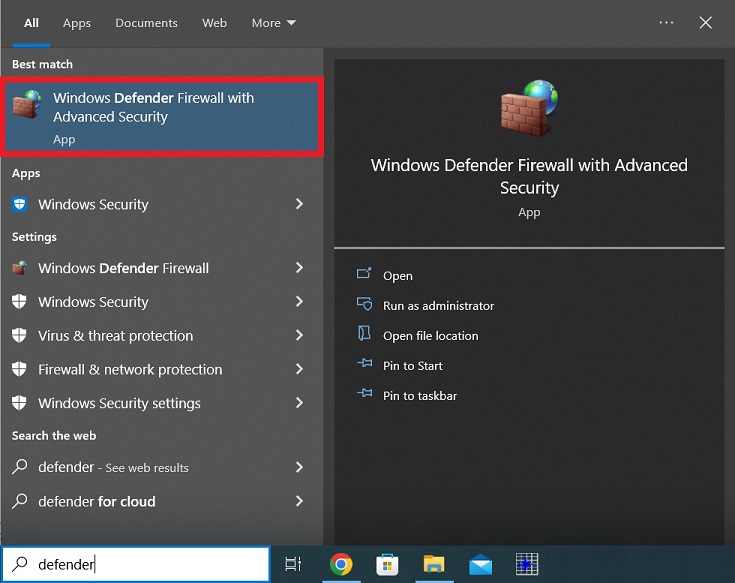
- Choose Inbound Rules
- Scroll to the entries File and Printer Sharing (Echo Request - ICMPv4-In)
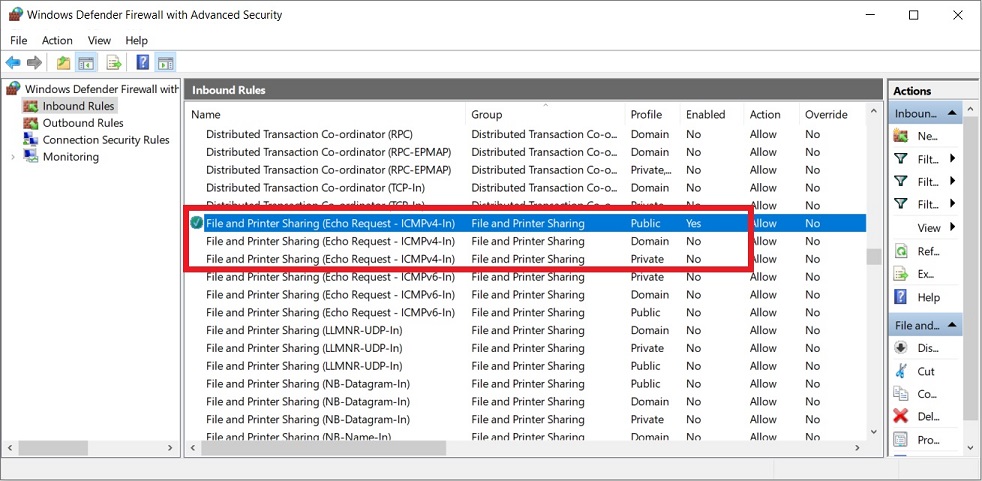
- Check the column Enabled and make sure the entry for your current profile is set to Yes
- If it shows No, you can enable it with right-click -> Enable Rule
5. Execute Ping Command on your GeoSIG Instrument
- Connect to the serial console of your instrument
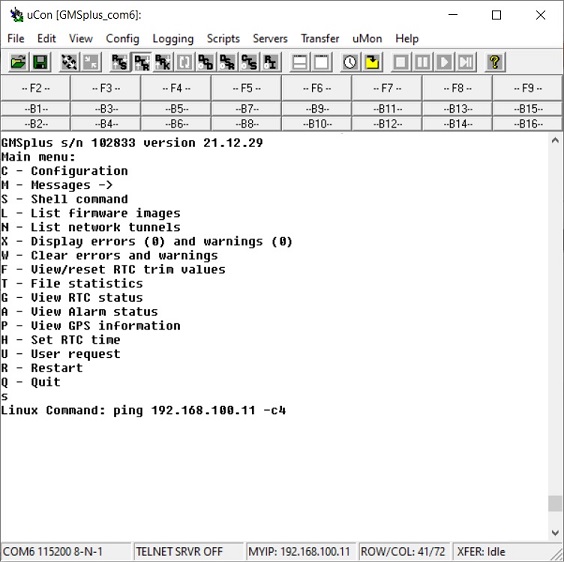
- In the Main Menu, select [S] to enter Shell Command Prompt
- Enter ping xxx.xxx.xxx.xxx -c4 (put the IP address of the computer to ping in place of the xxx) and confirm with [Enter]
6. Check Result
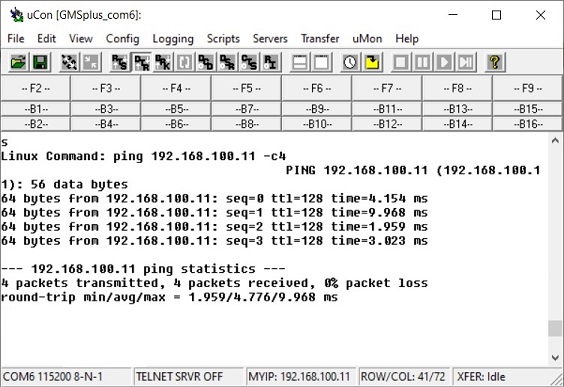
- The instrument will try to contact the IP 4 times
- If the computer is reachable, 4 packets transmitted, 4 packets received, 0% packet loss will be plotted
- If the computer is not reachable, 4 packets transmitted, 0 packets received, 100% packet loss will be plotted
- If the computer is not reachable, check hardware connections and network configuration on your computer and instrument, or contact your Network Administrator.
(There may be a firewall blocking communication.)