























FAQ How to Ping an IP address from Windows
1. Introduction
- This procedure describes how to check reachability of an instrument in the network using the ping command in Windows.
2. Required Tools
- Windows computer connected to the same network as the instrument you want to check
- IP address of the instrument to check
3. Find out the IP address of your Instrument
- Connect to the serial console of your instrument
- In the Main Menu, select [S] to enter Shell Command Prompt
- Enter ifconfig and confirm with [Enter]
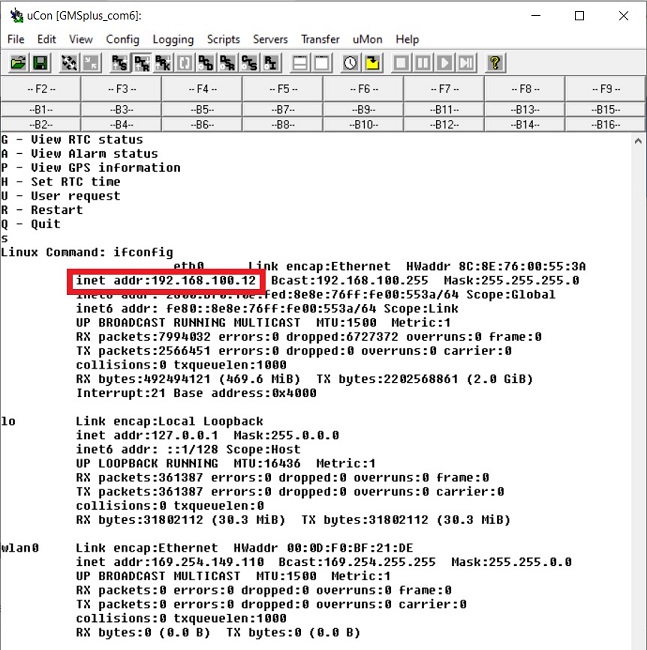
- The IP address of your instrument's Ethernet adaptor will be shown under eth0 as inet addr:xxx.xxx.xxx.xxx
- If your instrument is connected through Wifi, the IP can be found under wlan0 and will be shown as inet addr:xxx.xxx.xxx.xxx
- If the IP starts with 169.254.xxx.xxx, your instrument is most likely not connected to a network
4. Start Windows Command Prompt
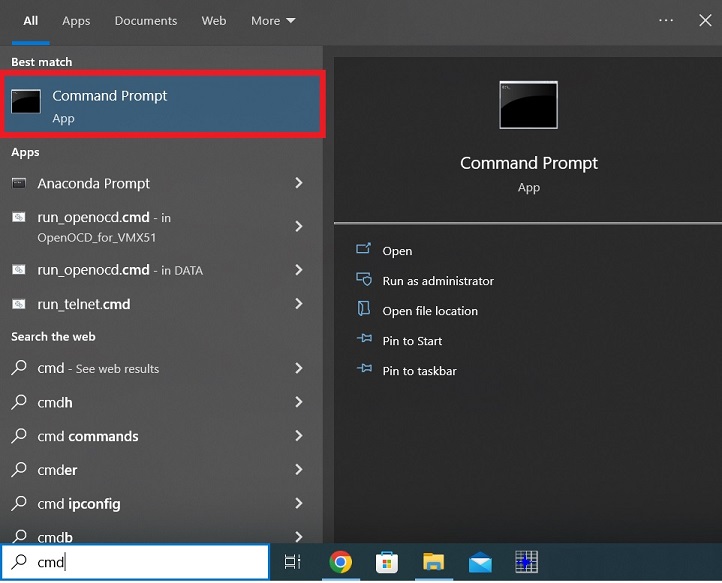
- Open the Windows Search Menu for Programs
- Search for cmd
- Open the Command Prompt App
5. Execute Ping Command
- A new window will appear
- Type ping, add a space and then insert the IP address of the instrument you want to ping (put the IP numbers in place of the xxx)
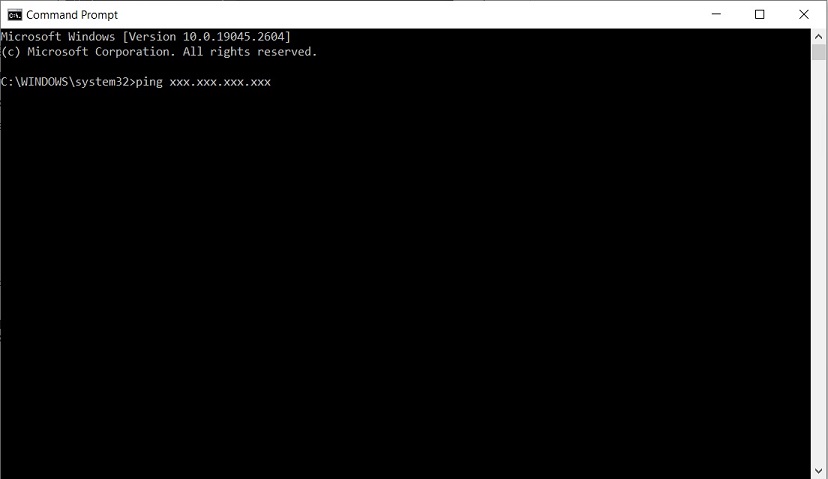
- Confirm by pressing [Enter] key on your keyboard
6. Check Result
- It will try to contact the IP 4 times
- If the instrument is reachable, Reply from xxx.xxx.xxx.xxx will be plotted
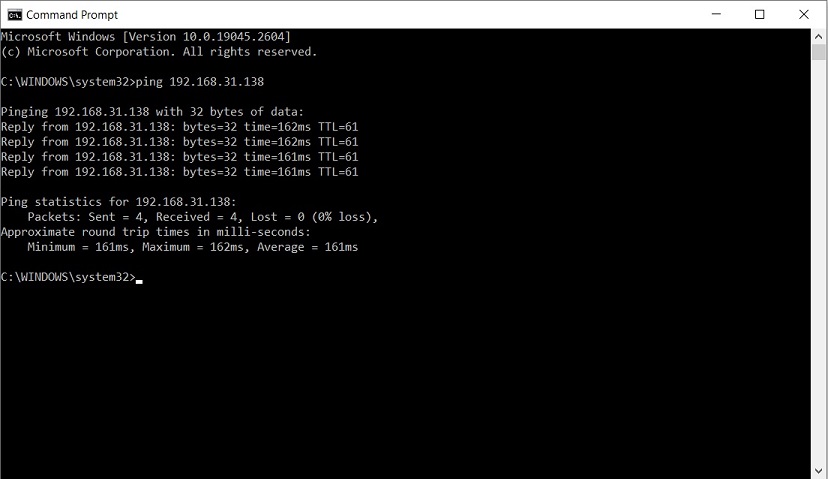
- If the instrument is not reachable, Request timed out. will be plotted
- If the instrument is not reachable, check hardware connections and network configuration on your computer and instrument, or contact your Network Administrator.
(There may be a firewall blocking communication.)