




















FAQ GeoDAS Configuration Backup and Restore
1. Introduction
- This procedure describes how to store a backup of GeoDAS configuration and how to restore GeoDAS configuration from a backup file.
2. Required Tools
- GeoDAS installed on a Windows computer
3. Backup GeoDAS Configuration
- In GeoDAS under File -> Configuration, click Backup.
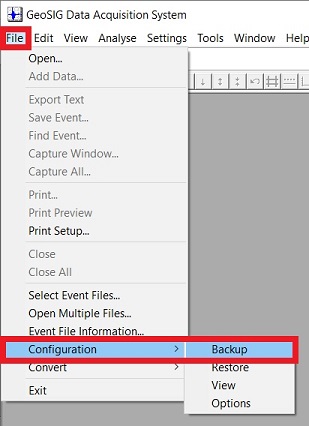
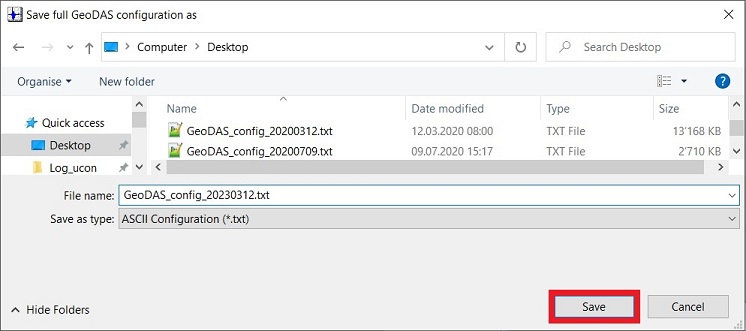
- Choose a directory and file name for your backup.
- Click [Save] to save the configuration in .txt format.
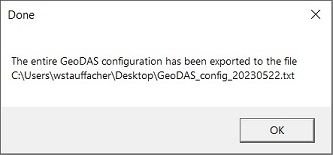
- The process may take a while; wait for the confirmation message.
4. Restore GeoDAS Configuration from Backup
- The process will overwrite the current settings! Make sure you have stored a backup of the current configuration (see steps under 3.)
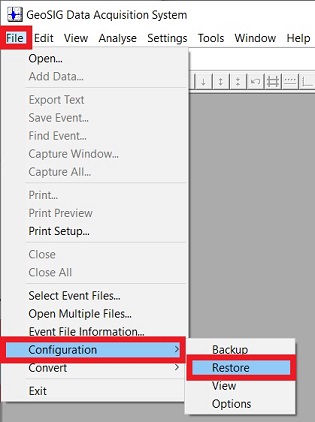
- In GeoDAS under File -> Configuration, click Restore
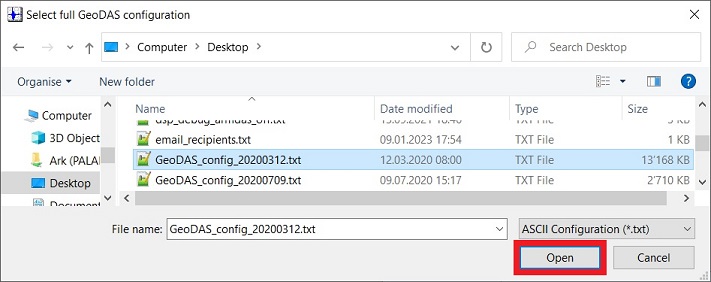
- Choose a directory and file name for your backup.
- Click [Save] to save the configuration in .txt format.
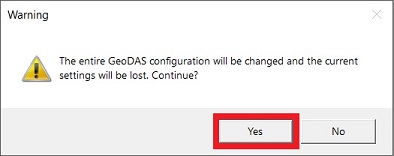
- If you have a backup of the current settings, confirm the warning with [Yes]
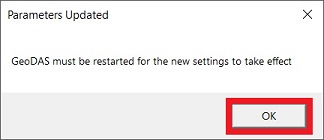
- Confirm with [OK] and restart GeoDAS
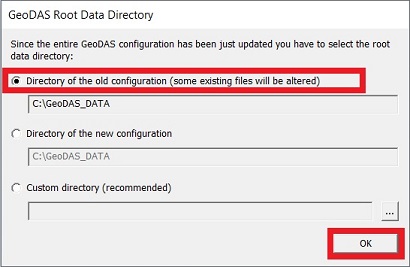
- After the restart, you will be asked to choose the root directory of GeoDAS
- To continue using the same root data directory, tick Directory of the old configuration
- Confirm with [OK]